'/%3E%3C/svg%3E)
'/%3E%3Cpath%20fill='%23b2b2b2'%20d='M241%20382q0%2016%2017%2026%2017%2011%2042%2011t42-11q16-11%2017-26V269H241'/%3E%3Cpath%20fill='%239f7e00'%20d='M241%20379q0%2014%208%2023%209%209%2021%209%2014%200%2021-9%209-9%209-23V269h-59'/%3E%3Cpath%20d='M241%20339v-70h59v110q0%2014-9%2023l-6%205v-68h-15v72q-8%200-14-4v-68zm59%2040c0%2022%2015%2032%2029%2032%2021%200%2030-18%2030-32v-40h-59'/%3E%3Cpath%20fill='%239f7e00'%20d='M266%20277v5h2v12h-3v-5h2v-5h-9v5h2v5h-4v9h3v18h-5v10h34v-10h-5v-18h3v-9h-4v-5h2v-5h-9v5h2v5h-3v-12h2v-5zm42%20101q0%2010%206%2017%206%206%2015%207%2010-1%2016-7%206-7%206-17v-29h-43'/%3E%3Ccircle%20fill='%230044ad'%20cx='329.5'%20cy='372'%20r='6'/%3E%3Cellipse%20fill='%230044ad'%20cx='300'%20cy='340'%20rx='16'%20ry='21'/%3E%3C/svg%3E)

Generate your token, access key and bucket in Cloudflare R2
Step-by-step guide to configure Cloudflare R2 and retrieve the required connection credentials to upload files from your website.
Step 1: Find Your Account ID
-
-
Log in to your Cloudflare Dashboard: dash.cloudflare.com. If you don’t have an account, you must create one.
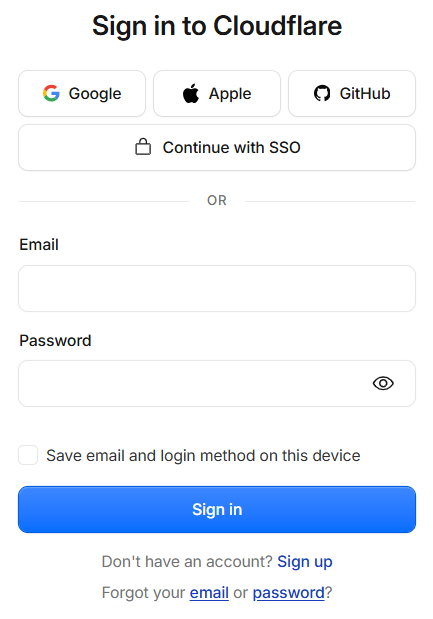
- When you’re in the Cloudflare dashboard, your account ID is always displayed directly in your browser’s address bar.It has the following structure:
[https://dash.cloudflare.com/](https://dash.cloudflare.com/)XXXXXXXXXXXXXXXXXXXXXXXXXX/r2/overviewThe combination of letters and numbers that appears is your account ID. - Copy and paste it into the relevant section of the theme’s dashboard.
-
Step 2: Create a Storage Bucket
-
-
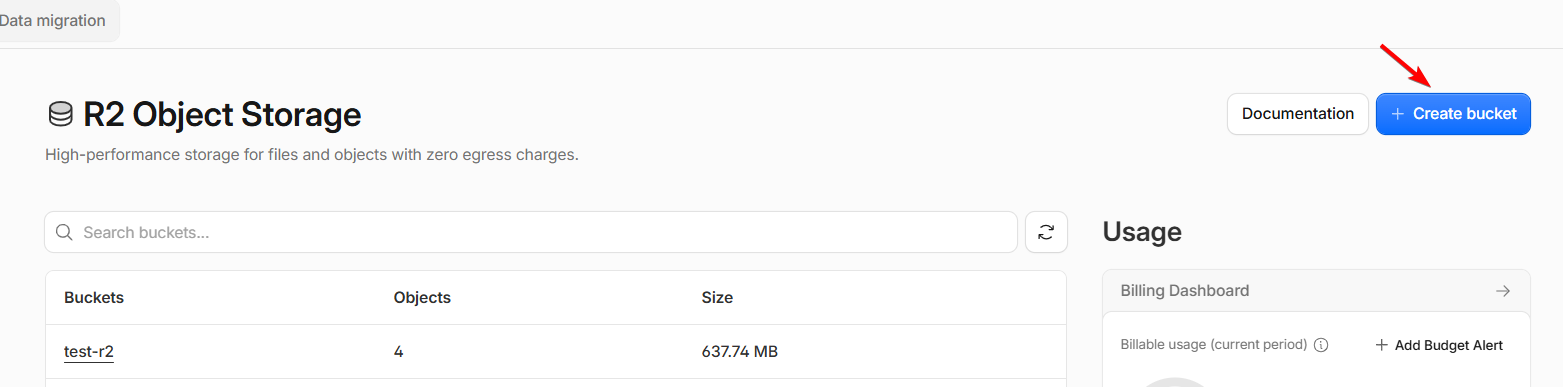
Inside the R2 section, click the Create bucket button.
-
-
Enter a name for your storage container in the Bucket Name field (e.g.,
my-filesoruploads). -
Click Create bucket.
-
The name you choose here is exactly what you should enter in the Bucket Name field of your WordPress dashboard.
Step 3: Generate Access Key and Secret Key
-
Return to the main R2 overview page from the left menu.
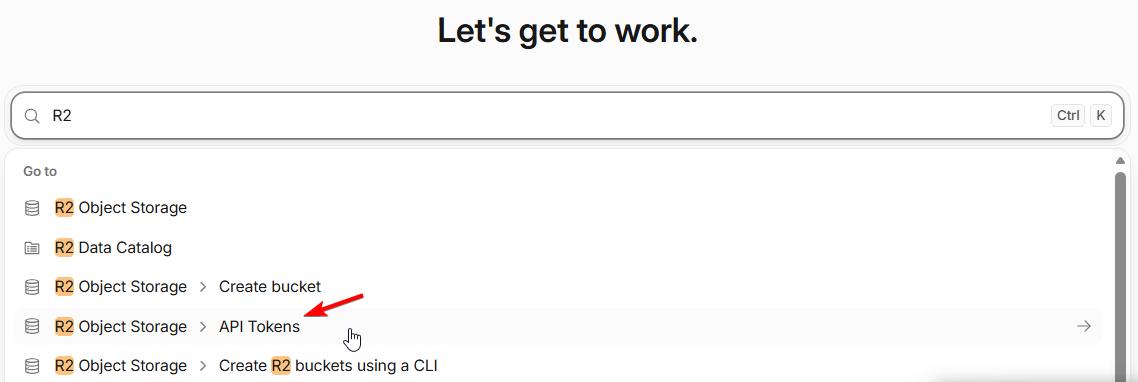
-
Click API Tokens.
-
Click the Create Account API token button.
-
Configure the token settings:
-
Token name: Enter a descriptive name (e.g.,
WordPress Uploader). -
Permissions: Select Admin Read & Write.
-
Client IP Address Filtering: You can add IPs to limit token usage.
-
-
Click the Create Account API token button.
-
On the confirmation screen, your credentials will be displayed:
-
Access Key ID: Copy and paste it into the theme panel option.
-
Secret Access Key: Copy and paste it into the theme panel option.
-
Important: Both keys are only displayed once. If you close the window without copying them, you will have to delete the token and create a new one.
Step 4: Enable Public Access for Downloads
By default, files uploaded to R2 are private. To allow users to download files publicly via a URL, enable public access:
-
Go to R2 and click on your bucket name.
-
Select the Settings tab.
-
Scroll down to the Public development URL section, click Allow, type
allowin the confirmation box, and confirm.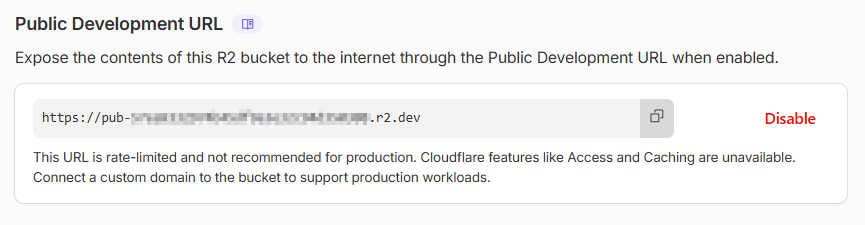
-
Copy the public URL assigned by Cloudflare (e.g.,
[https://pub-xxxxxxxx.r2.dev](https://pub-xxxxxxxx.r2.dev)) and enter it into your public domain setting.
(Optional: In the same Settings section, you can click Connect Domain under Custom Domains to attach a custom subdomain such as downloads.yourdomain.com).