'/%3E%3C/svg%3E)
'/%3E%3Cpath%20fill='%23b2b2b2'%20d='M241%20382q0%2016%2017%2026%2017%2011%2042%2011t42-11q16-11%2017-26V269H241'/%3E%3Cpath%20fill='%239f7e00'%20d='M241%20379q0%2014%208%2023%209%209%2021%209%2014%200%2021-9%209-9%209-23V269h-59'/%3E%3Cpath%20d='M241%20339v-70h59v110q0%2014-9%2023l-6%205v-68h-15v72q-8%200-14-4v-68zm59%2040c0%2022%2015%2032%2029%2032%2021%200%2030-18%2030-32v-40h-59'/%3E%3Cpath%20fill='%239f7e00'%20d='M266%20277v5h2v12h-3v-5h2v-5h-9v5h2v5h-4v9h3v18h-5v10h34v-10h-5v-18h3v-9h-4v-5h2v-5h-9v5h2v5h-3v-12h2v-5zm42%20101q0%2010%206%2017%206%206%2015%207%2010-1%2016-7%206-7%206-17v-29h-43'/%3E%3Ccircle%20fill='%230044ad'%20cx='329.5'%20cy='372'%20r='6'/%3E%3Cellipse%20fill='%230044ad'%20cx='300'%20cy='340'%20rx='16'%20ry='21'/%3E%3C/svg%3E)

Generate your access keys and bucket in Amazon S3
Step-by-step guide to configure Amazon S3 and obtain the necessary credentials and settings to upload files.
Step 1: Get Your Bucket Region
-
Log in to the AWS Management Console. If you don’t have an account, you must create one.
-
In the top search bar, search for and select S3.
-
Click on your bucket name (or create a new one by clicking Create bucket).
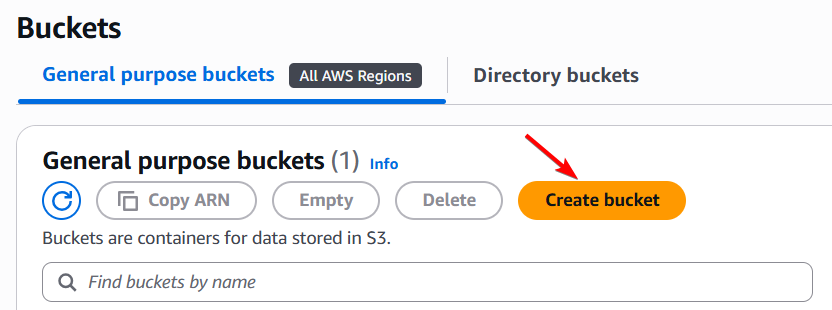
-
If you are creating a new bucket, look at the AWS Region field at the top of the form to find the region code inside the parentheses (e.g.,
us-east-1,us-east-2osa-east-1). Just fill in your bucket name. Paste the region code and bucket name into the theme fields.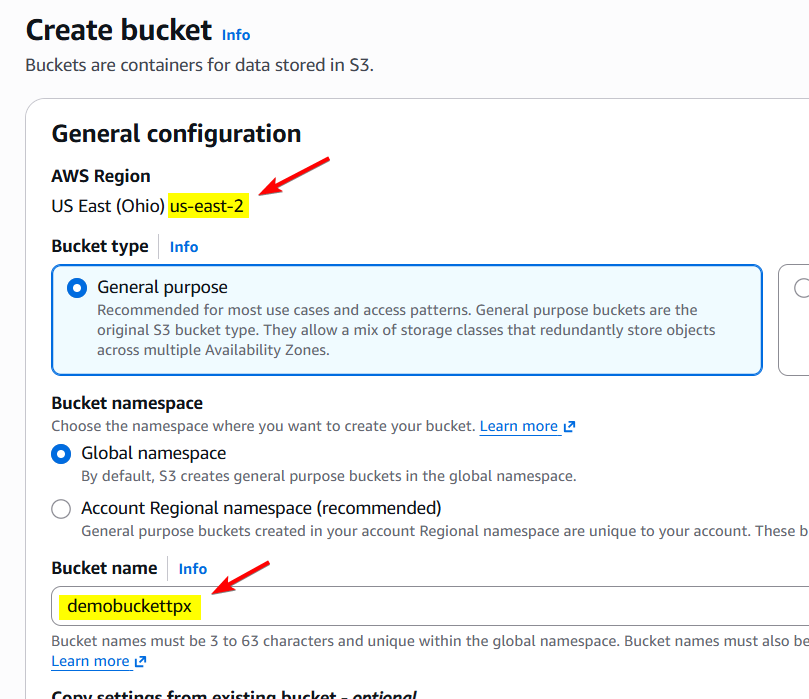
- Click on Create bucket.
Step 2: Create an IAM User and Generate Access Keys
For security reasons, AWS requires creating an IAM user instead of using the main root account.
-
In the top search bar, search for and select IAM > Users. Then click on Create user.
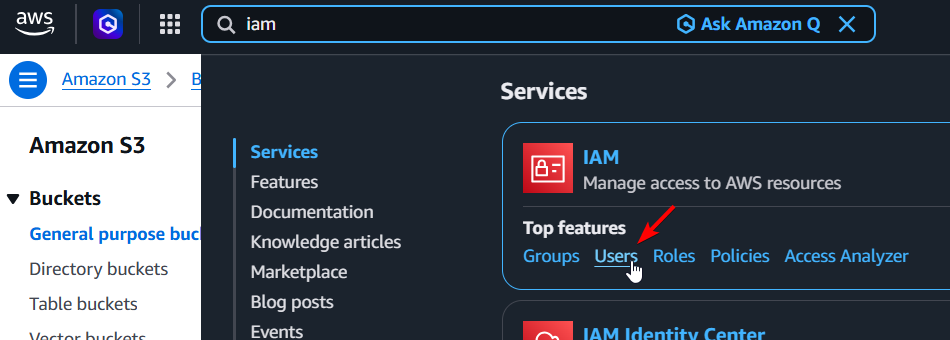
-
Enter a username (for example:
s3-uploader-user) and click Next. -
Under Permissions options, select Attach policies directly.
-
Search for
AmazonS3FullAccess, select its checkbox, and click Next > Create user.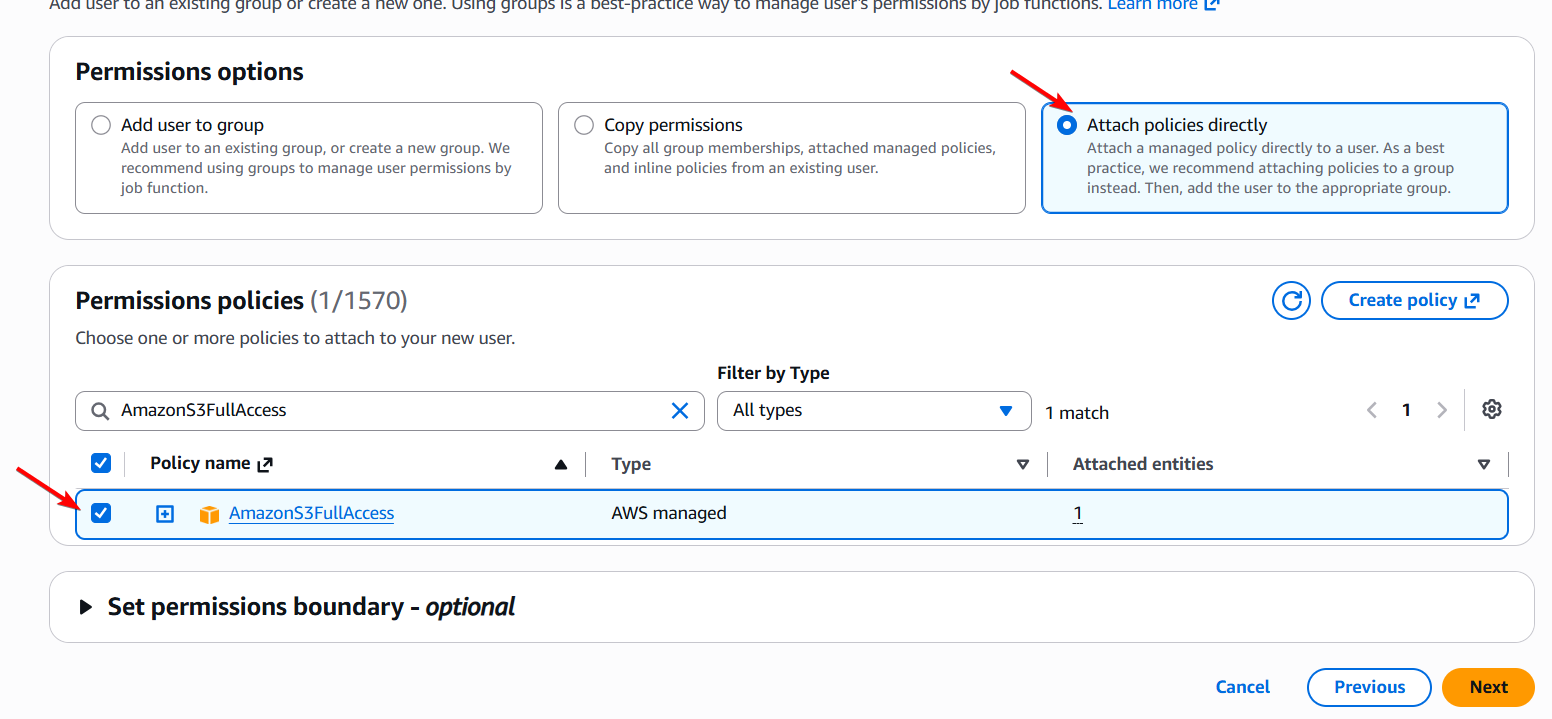
-
Click on the newly created user from the list.
-
Select the Security credentials tab.
-
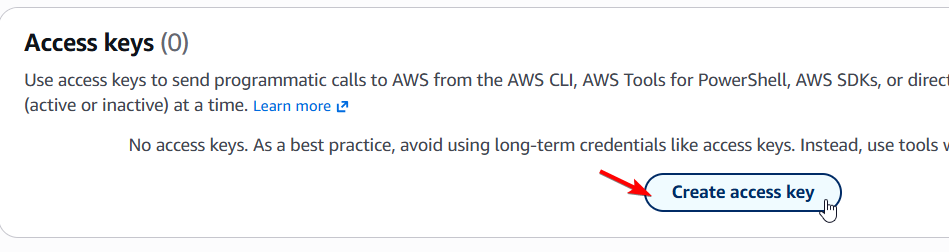
Scroll down to the Access keys section and click Create access key.
-
Select the Application running outside AWS option and click Next > Create access key.
-
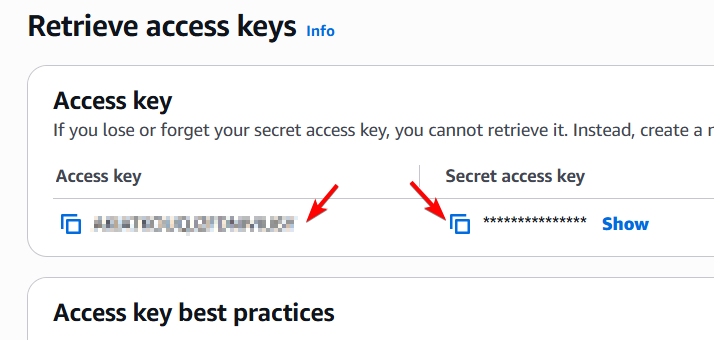
Copy both the Access Key and the Secret Access Key.
Important: The Secret Access Key is only displayed once. Make sure to copy it or download the
.csvfile immediately.
Step 3: Configure Bucket Permissions for Public Downloads
By default, Amazon S3 blocks public downloads. To allow users to download uploaded files, configure public access and add a bucket policy:
-
Go back to S3 and select your bucket.
-
Open the Permissions tab.
-
Scroll down to Block public access (bucket settings), click Edit, uncheck the Block all public access checkbox, and save changes by typing
confirm. -
Scroll down to Bucket policy, click Edit, and paste the following policy (replace
YOUR-BUCKET-NAMEwith your actual bucket name):{ "Version": "2012-10-17", "Statement": [ { "Sid": "PublicReadGetObject", "Effect": "Allow", "Principal": "*", "Action": "s3:GetObject", "Resource": "arn:aws:s3:::YOUR-BUCKET-NAME/*" } ] }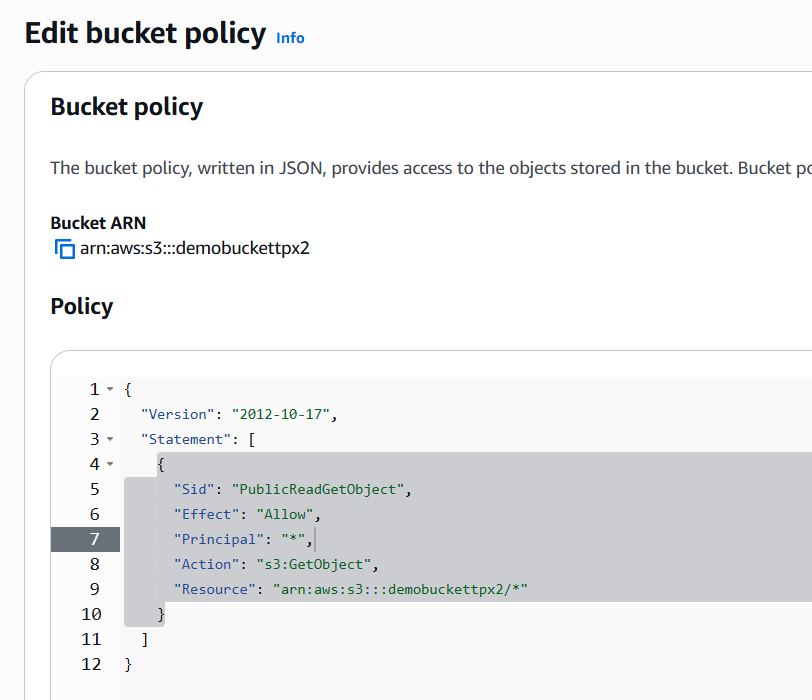
- Click Save changes. Your bucket is now ready to serve public downloads via standard S3 URLs.
Remember that the “Objects” tab contains all the files that will be automatically uploaded.